Live departure and arrival boards, station filters, favourites, Home & Work, real-time journey planning, Journey Progress, pinned services and the less-obvious swipe and long-press shortcuts.
Install the web app and choose your first station.
First time using UK Train Info? Add the app to your Home Screen for the full-screen experience, then choose a station and start with its live board. The live app is available from UK connections only. If you already exported a UK Train Info backup, you can restore your favourites and settings from Settings.
Install on iPhone or iPad
Open UK Train Info in Safari.
Tap the Share button.
Choose Add to Home Screen.
Tap Add.
Opening it from the Home Screen gives the app its full-screen layout. UK Train Info can also keep layout offsets tuned separately for the installed Web App and an ordinary browser tab.
Install on Android
Open UK Train Info in Chrome or your supported browser.
Open the browser menu.
Choose Install app or Add to Home screen.
Confirm the installation.
The wording can vary slightly by browser and Android version.
2
The live board
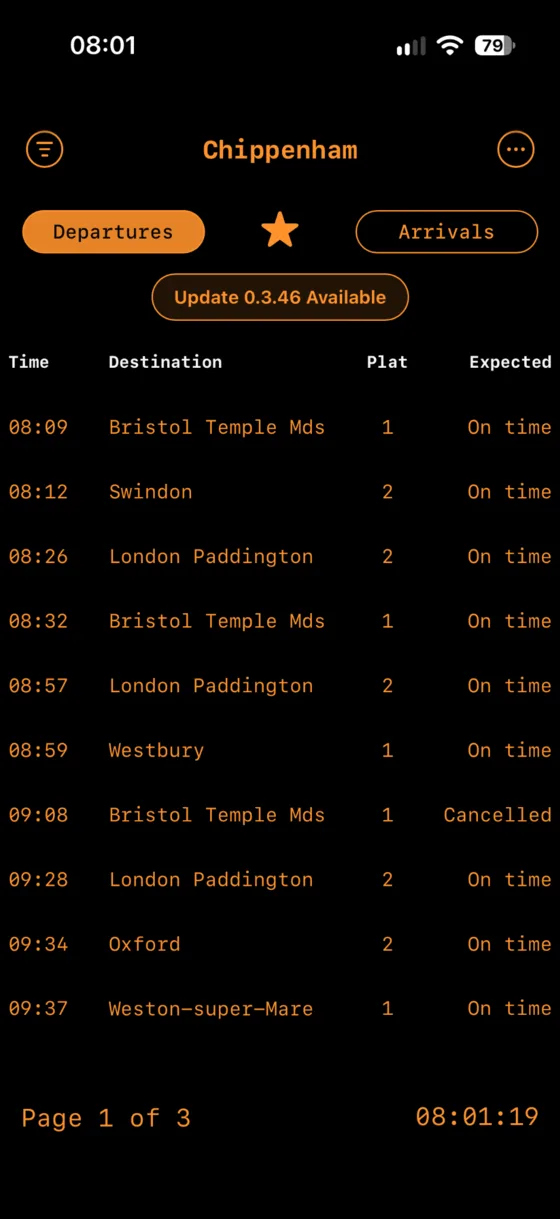
Your main screen for departures and arrivals.
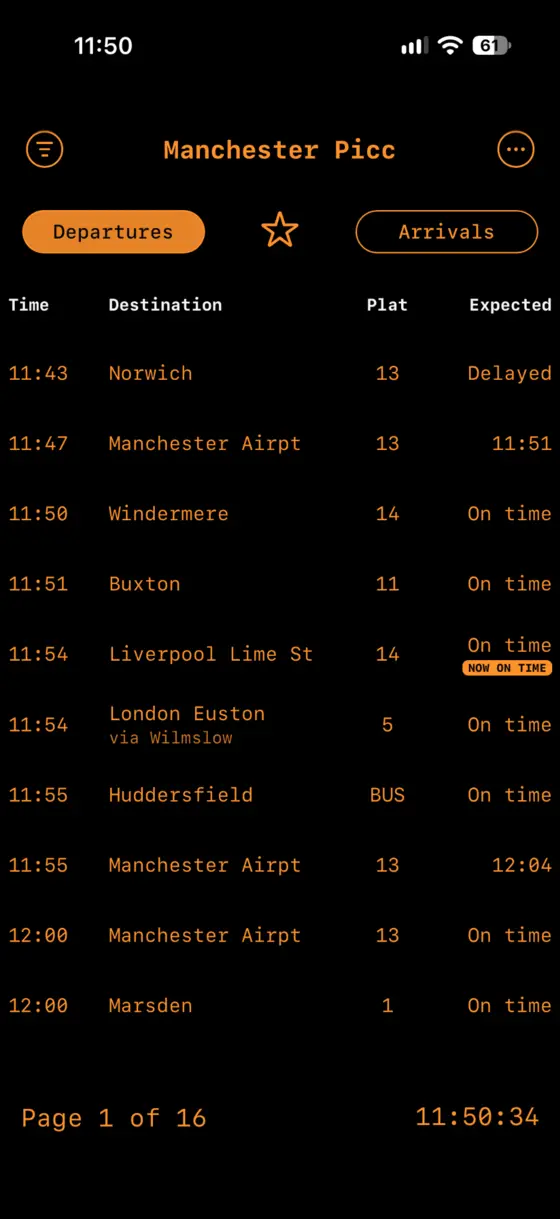
Manchester Piccadilly live board with multiple services, live statuses and a NOW ON TIME change badge.
What you can do
Departures / Arrivals: switch board direction from the buttons at the top.
★ Favourite: saves the complete board you are viewing — station, departures/arrivals and any active Calling At filter.
Tap a train: opens Service Details and Journey Progress.
Page controls: use the arrows, or tap Page x of x, to move through the board.
Pull down: pull down on the live board to force a fresh live-data request.
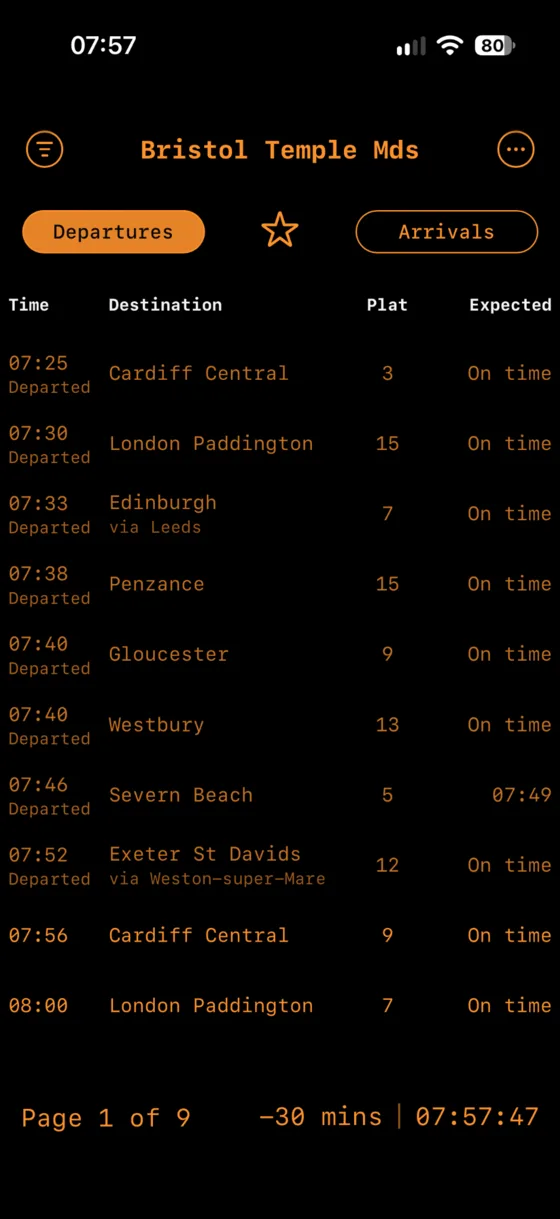
Earlier services: tap the clock to cycle through 30, 60, 90 and 120 minutes back in time. Tap the orange offset label to return to now.
Via text: where National Rail provides it, a smaller “via …” line appears beneath the destination and can be turned off in Settings.
Quick jump: long-press a service row. On a Departures board it jumps straight to that train's destination board; on an Arrivals board it jumps to the train's origin board.
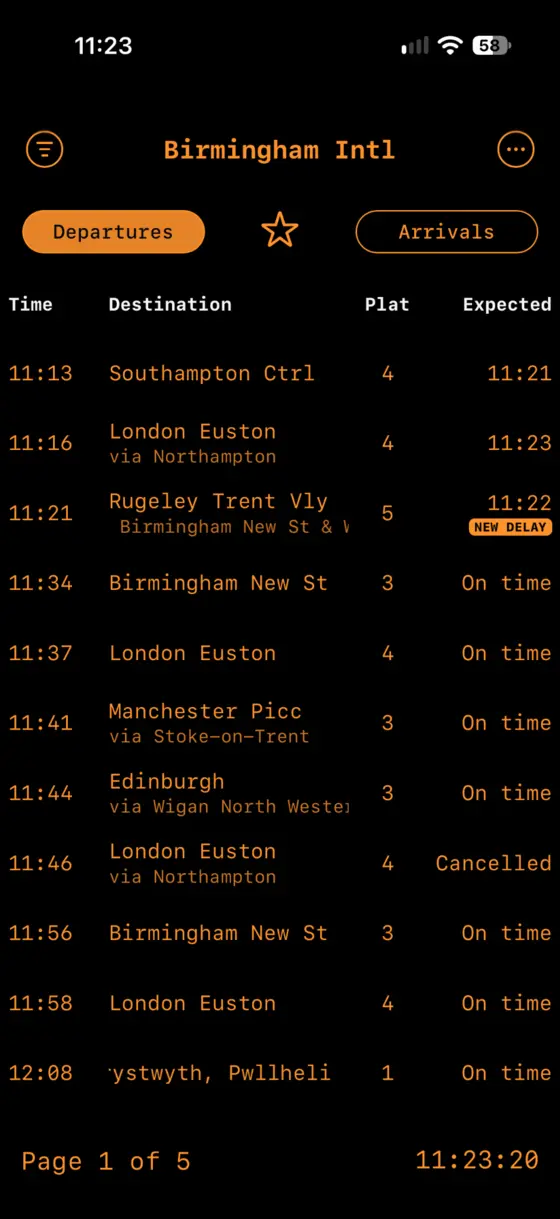
Recent-change badges such as NEW DELAY appear alongside the current live status for about 90 seconds.
Statuses and recent-change badges
The Expected column shows the current live state, such as On time, a revised time, Delayed or Cancelled. Recently departed or arrived services can also appear when you are viewing an earlier time window.
When the same board refreshes, UK Train Info compares the new result with the previous one. If an important live detail has just changed, a compact badge is shown for about 90 seconds so the change is easy to spot:
NEW DELAY — a service that was not delayed has become delayed.
NOW ON TIME — a previously delayed service has returned to on time.
CANCELLED — the service has newly changed to cancelled.
PLATFORM CHANGED — a known platform has changed since the previous refresh.
The badge is an extra recent-change indicator; the main Expected status still shows the train's current state. The Manchester Piccadilly screenshot above shows NOW ON TIME beneath the current status.
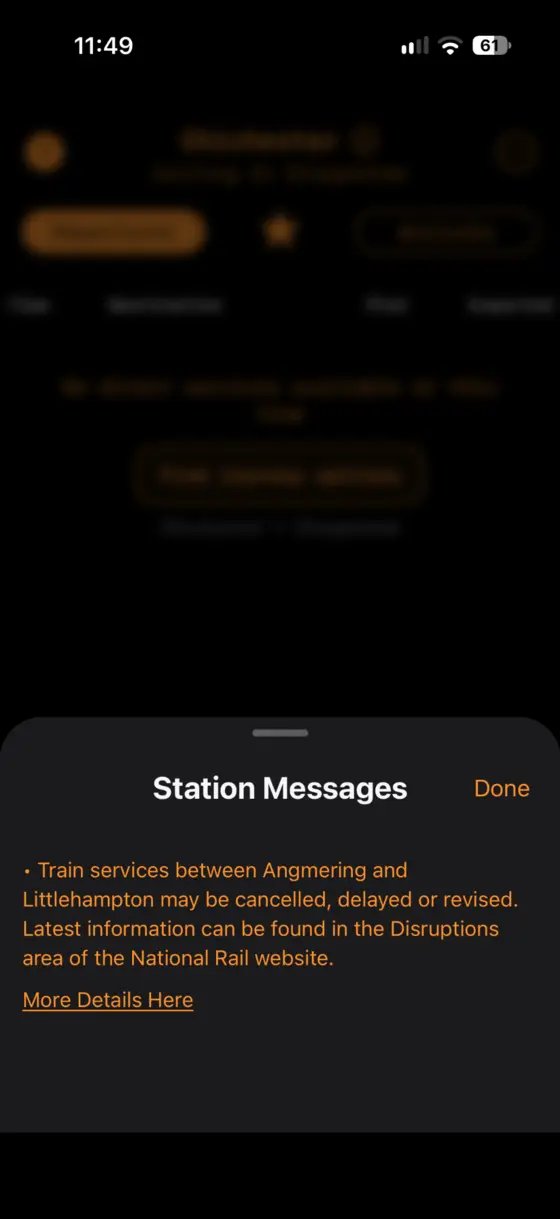
Tap the information icon beside the station name to read a current station message.
Station information and messages
When National Rail supplies a message for the station, an information icon appears beside the station name on the live board. Tap the icon — or tap the station title while a message is present — to open the Station Messages sheet.
The message can include disruption or other station-specific information. If National Rail supplies a related link, More Details Here opens that information on the National Rail website.
The information icon can be shown or hidden with Show Station Info Icon in Settings.
3
Gesture & shortcut cheat sheet
Several useful actions are deliberately one gesture away.
↔
Swipe live board left / right
Move to the next or previous Favourite in your saved order.
★
Long-press the star
Open the Favourites sheet immediately.
≡
Long-press the filter icon
If a Calling At filter is active, clear it instantly.
▤
Long-press a service row
Jump to its destination board (Departures) or origin board (Arrivals).
↓
Pull down to refresh
Works on the live board and at the top of Journey Options.
◷
Tap the board clock
Cycle through earlier live-board windows: -30, -60, -90 and -120 minutes.
→
Swipe Station Search row right
Reveal Favourite / Unfavourite for that station's standard Departures board.
⇆
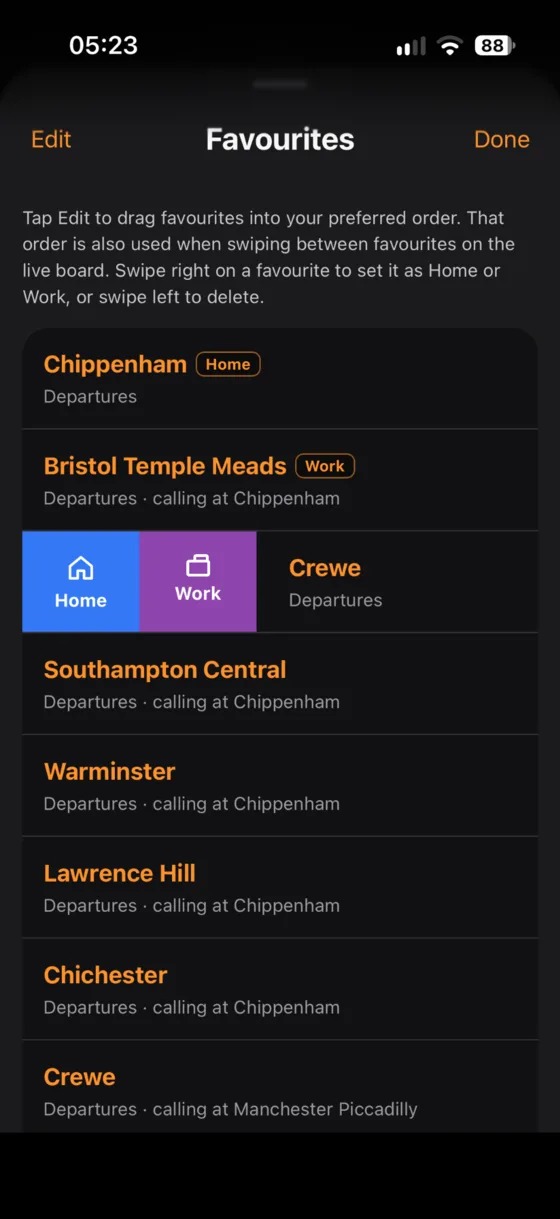
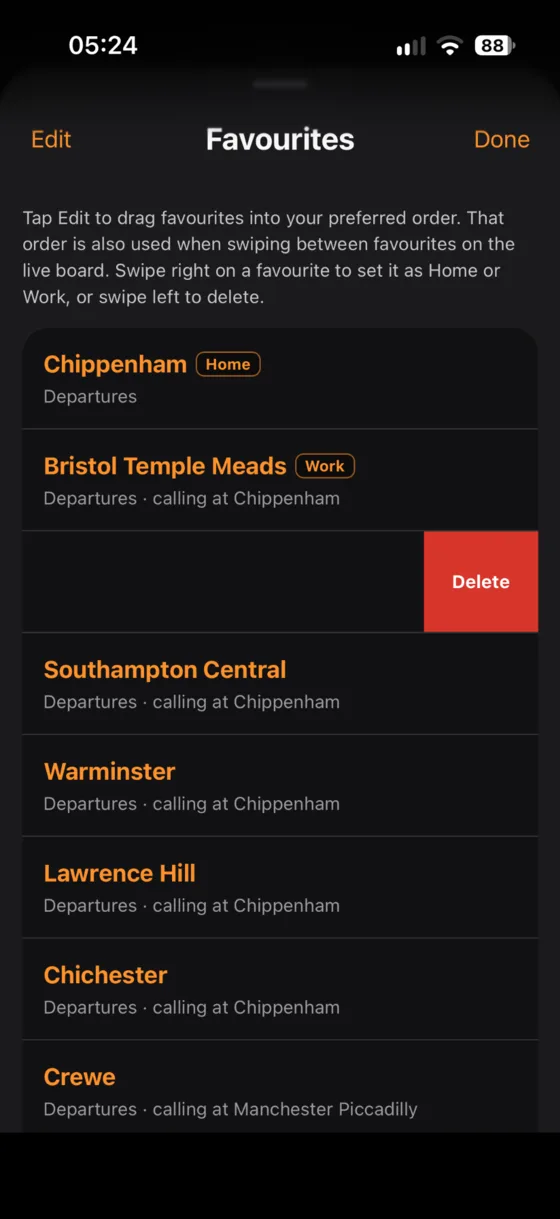
Swipe a Favourite
Right for Home / Work, left to Delete.
⌖
Swipe a Pinned Service
Right to Keep with no expiry, left to Delete.
4
Station Search
Find a station by name or CRS code, or sort by distance.
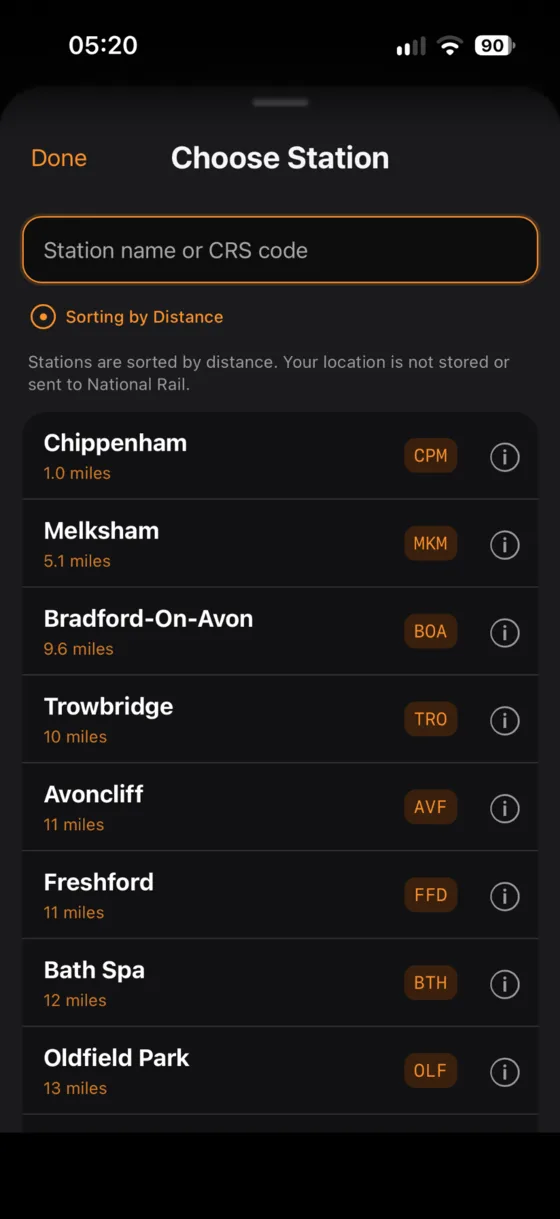
Search by station name or CRS code. With location available, distance can be shown.
Type a full or partial station name or a 3-letter CRS code.
Tap the sort control to switch between alphabetical and distance ordering.
When distance sorting is active, the app uses your current location on the device and shows approximate miles.
Tap the ⓘ button beside a station to open National Rail's station information page.
On the normal Station Search screen, swipe a result right to reveal Favourite or Unfavourite.
Location privacy: your location is used on the device to calculate distance. It is not stored by UK Train Info or sent to National Rail.
5
Filter a board by “Calling At”
Turn a busy station board into the services that are actually useful to you.
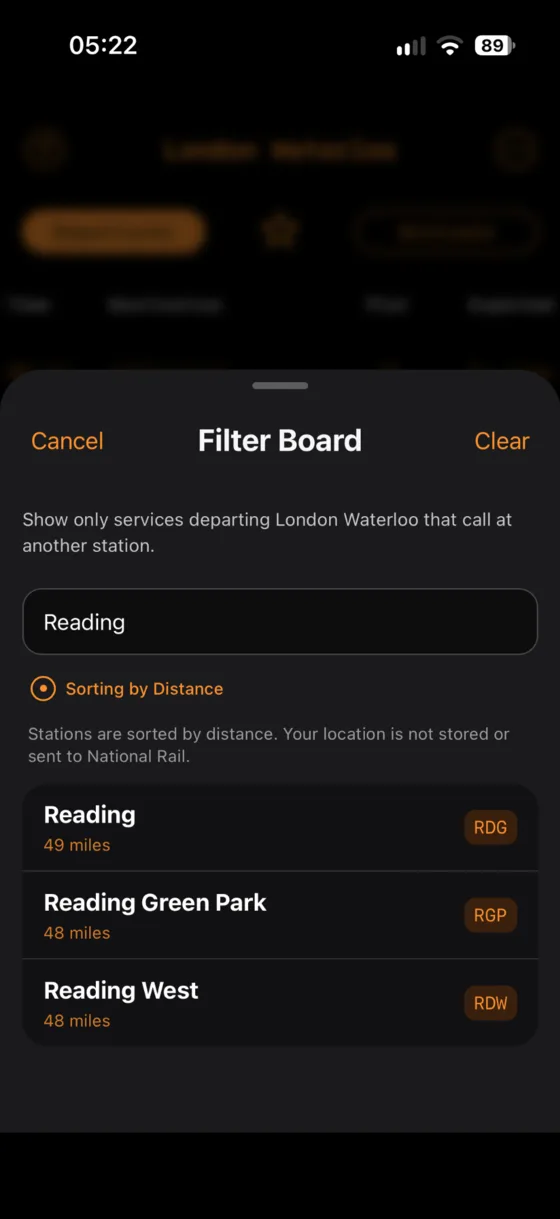
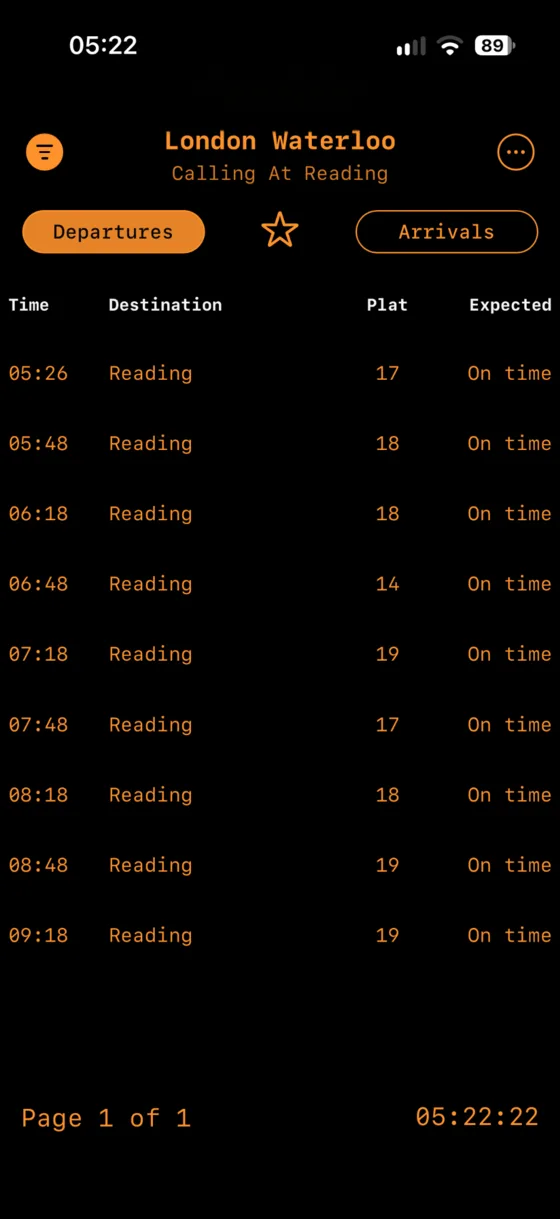
Choose the station that services must call at.The active filter appears under the station title.
Tap the filter icon at the top-left of the live board.
Search for the station you want the train to call at.
Choose the station. The board refreshes and the filter appears beneath the main station title.
Tap the filter icon again and choose Clear, or simply long-press the filter icon, to remove it.
A filtered board can itself be saved as a Favourite, assigned as Home or Work, and included when swiping between favourites.
No direct train? If a filtered board finds no direct service, UK Train Info offers Find journey options so you can search for a journey with changes.
6
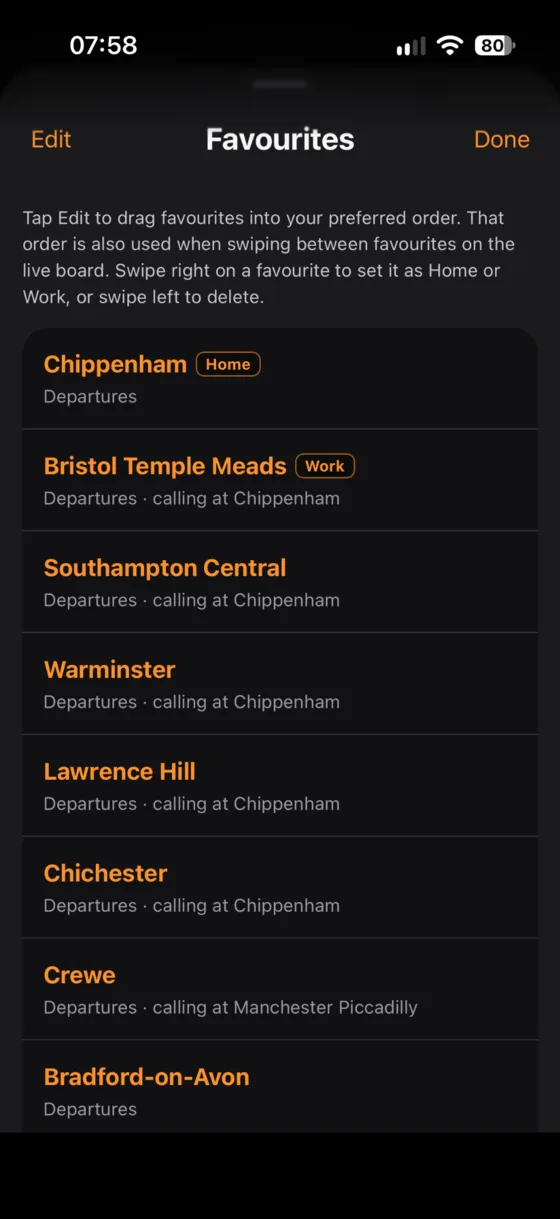
Favourites, Home & Work
Save whole board views, not just station names.
A Favourite remembers the board type and Calling At filter as well as the station.
Add and use favourites
Tap the ☆ on any board to save it. A filled ★ means the current board is already saved.
Swipe the live board horizontally to cycle through favourites in your saved order.
Long-press the star to open the Favourites list.
Choose Edit to drag favourites into the order you want.
Swipe right to set a Favourite as Home or Work.Swipe left to delete a Favourite.
Home and Work are Favourite boards. That means Work can be something specific such as “Bristol Temple Meads Departures calling at Chippenham”, rather than only the base station.
7
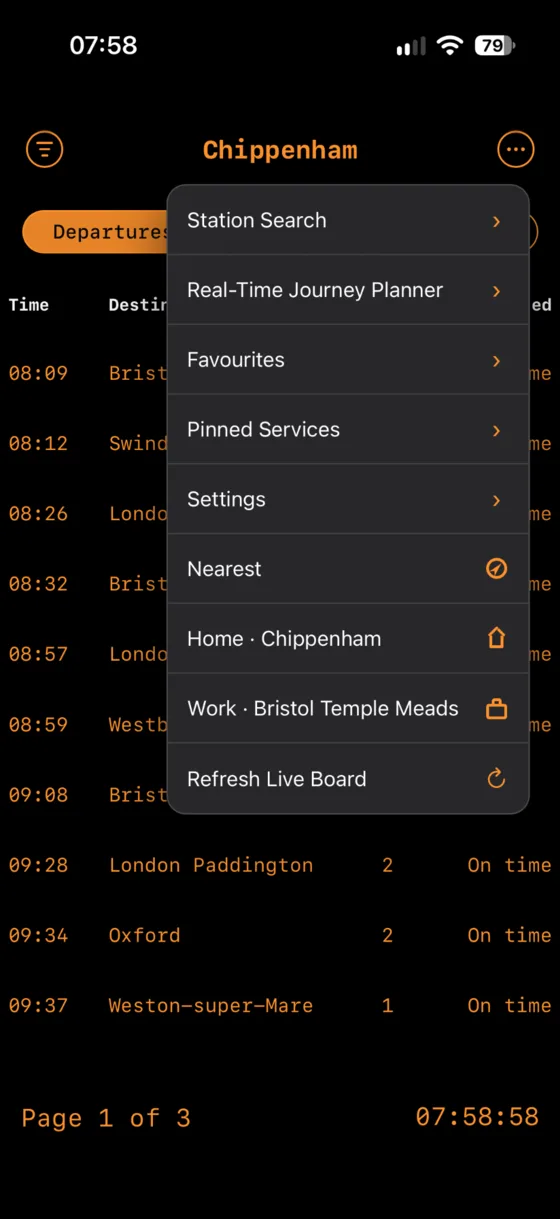
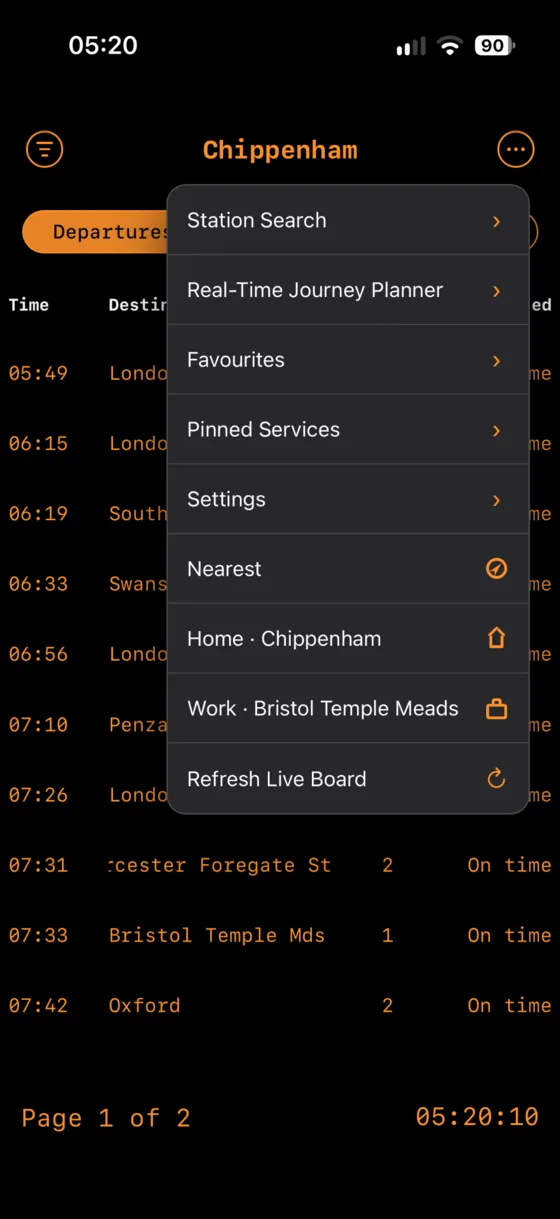
The three-dot menu
Your quickest route to the rest of the app.
The three-dot menu combines navigation and fast board shortcuts.
Station Search
Choose another live board.
Real-Time Journey Planner
Search direct and connecting journeys using live train data.
Favourites
Manage saved boards, Home and Work.
Pinned Services
Return to trains or multi-train journeys you have pinned.
Settings
Appearance, refresh, backup and other preferences.
Nearest
Gets a fresh location fix, finds the closest enabled station with coordinates and opens its board. It keeps your current Departures/Arrivals mode and clears any Calling At filter.
Home / Work
Open the Favourite board assigned to that role.
Refresh Live Board
Bypasses the short live-data cache and asks for fresh data.
8
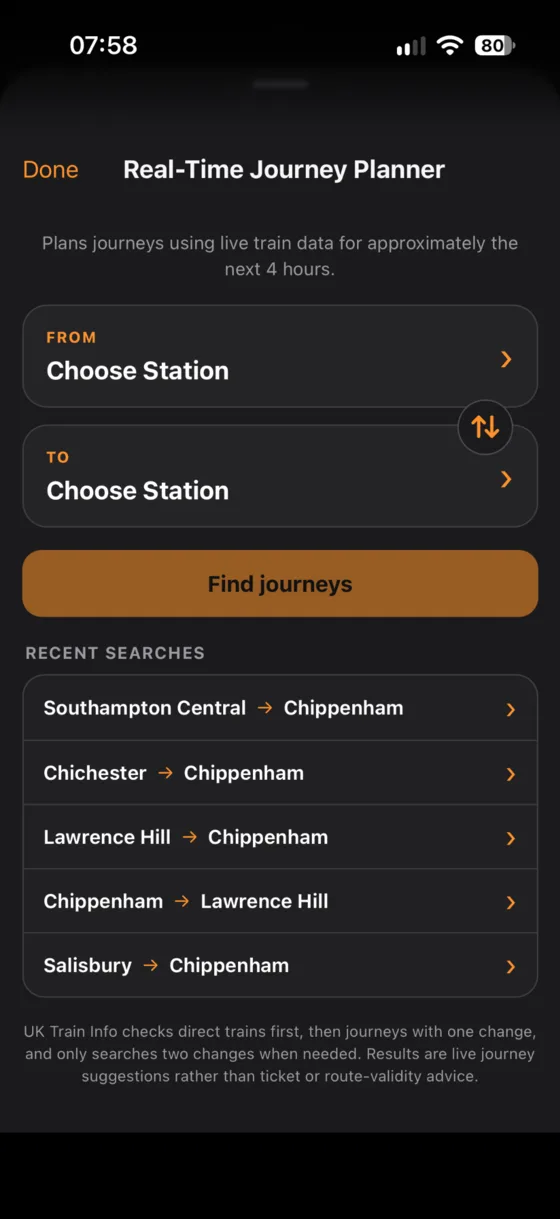
Real-Time Journey Planner
Build journeys from the same live data used by the boards.
Choose From and To, swap them if needed, or repeat a recent search.
Open Real-Time Journey Planner from the three-dot menu.
Choose the From and To stations. The ⇅ button swaps them.
Tap Find journeys.
Recent searches are kept locally for quick reuse.
The planner searches approximately the next four hours. It checks direct trains first, then journeys with one change, and only searches two changes when needed.
These are live journey suggestions, not ticketing or route-validity advice.
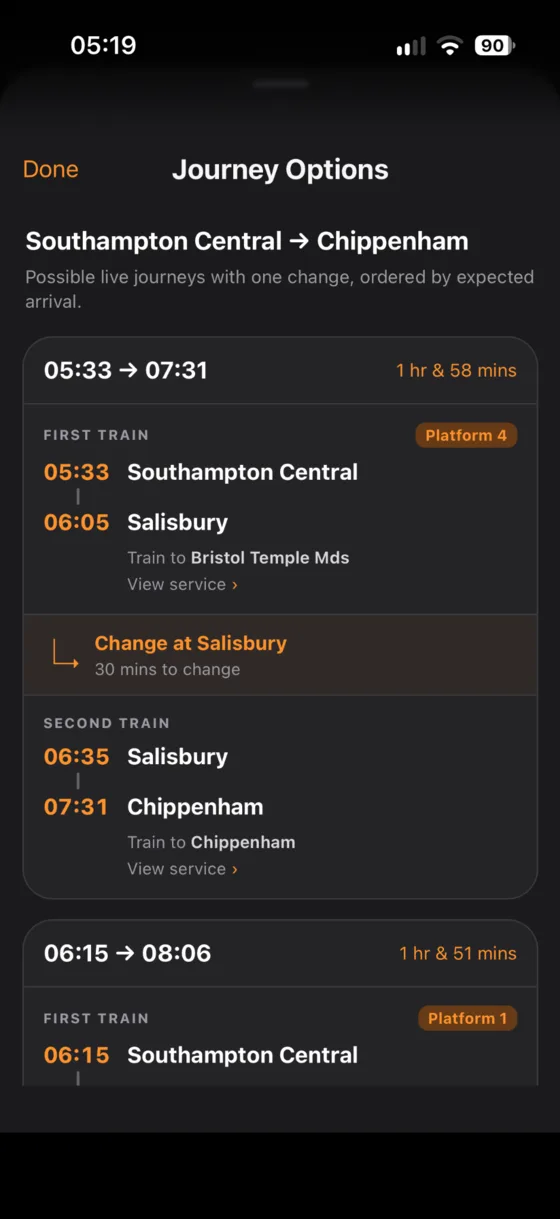
Journey Options shows the trains, platforms, transfer station and connection time.
Reading Journey Options
Each card shows departure and arrival time, total journey time and each train leg.
Platform badges appear where live data can identify the platform.
The change panel shows the interchange station and how long you have to change.
View service opens Service Details for that individual leg.
Pull down at the top of the results to refresh the search with fresh live data.
9
Service Details & Journey Progress
Follow one train through its route and inspect any stop.
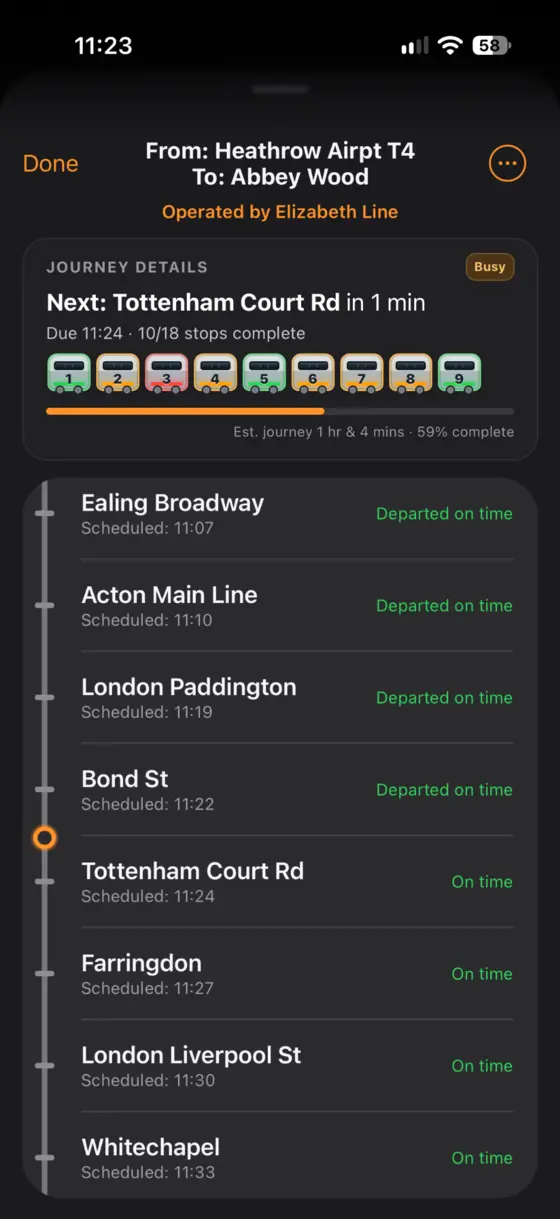
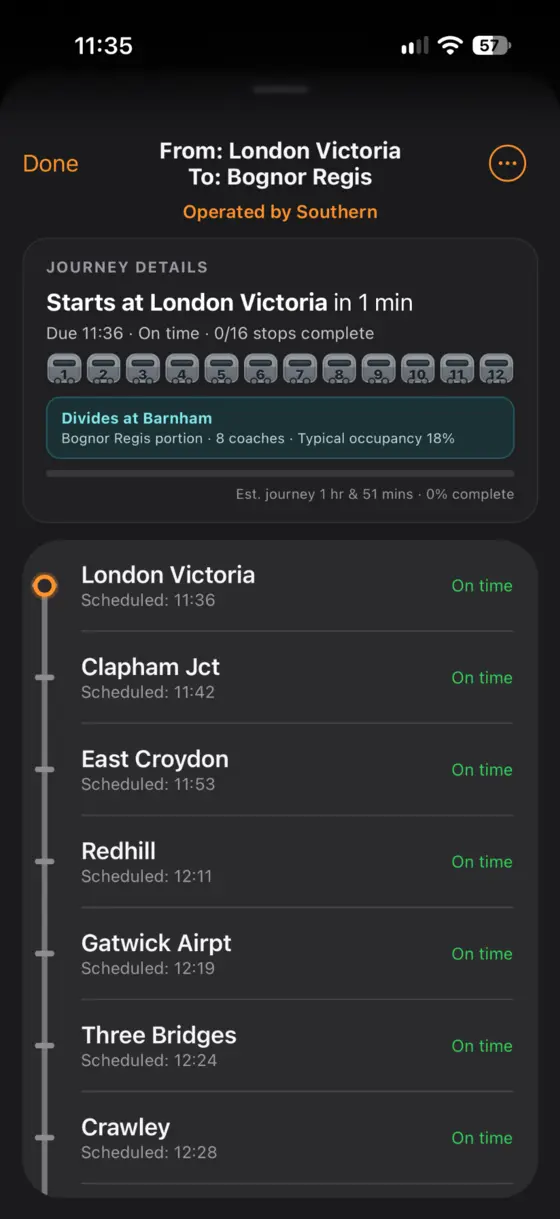
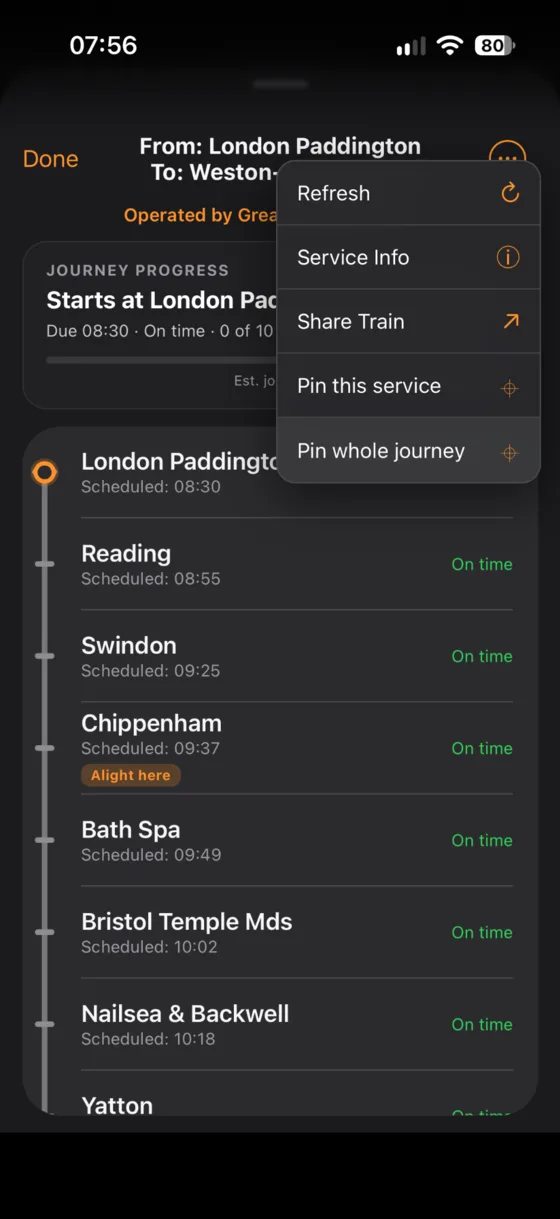
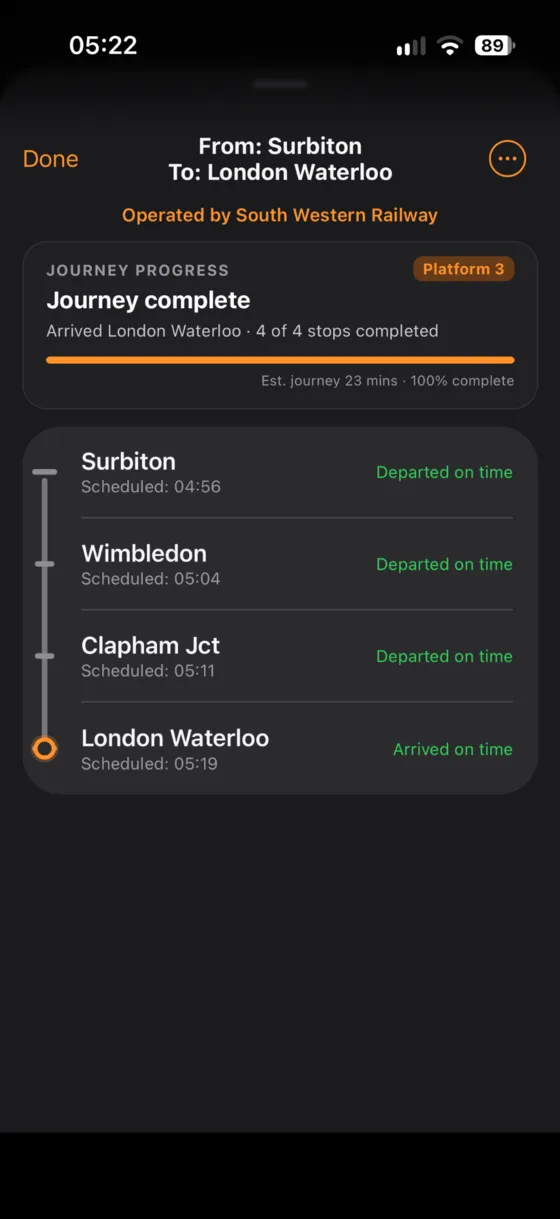
Journey Progress stays fixed while the calling-point list scrolls underneath it, and carriage details appear when live formation/loading data is available.
The header shows the service's route and, optionally, Operated by.
Journey Progress shows the next/current stop, countdown, live status, completed stops, platform and estimated whole-journey progress.
The orange marker on the route indicates the train's live/estimated position.
When live formation data is available, the coach strip shows the train's carriages. Grey carriages mean the app knows the formation but has no detailed loading for those coaches.
When detailed loading is available, the carriages are colour-coded and can show occupancy information — typically green for quieter coaches, amber for busier coaches and red for the busiest or most heavily loaded coaches.
Calling points show scheduled times and live status. A Journey Planner leg can also show Change here or Alight here.
Tap any calling-point row to inspect Journey Progress at that stop. A LIVE button appears so you can return to the train's current position.
When the station name in the Journey Progress sentence is tappable, tapping it opens that station's live board.
For trains that divide, the app asks which destination/portion you want before showing or pinning the appropriate branch.
Services that divide show the relevant portion and, when available, can show portion-specific coach counts and typical occupancy.Service actions include Refresh, Service Info, Share Train and pinning.
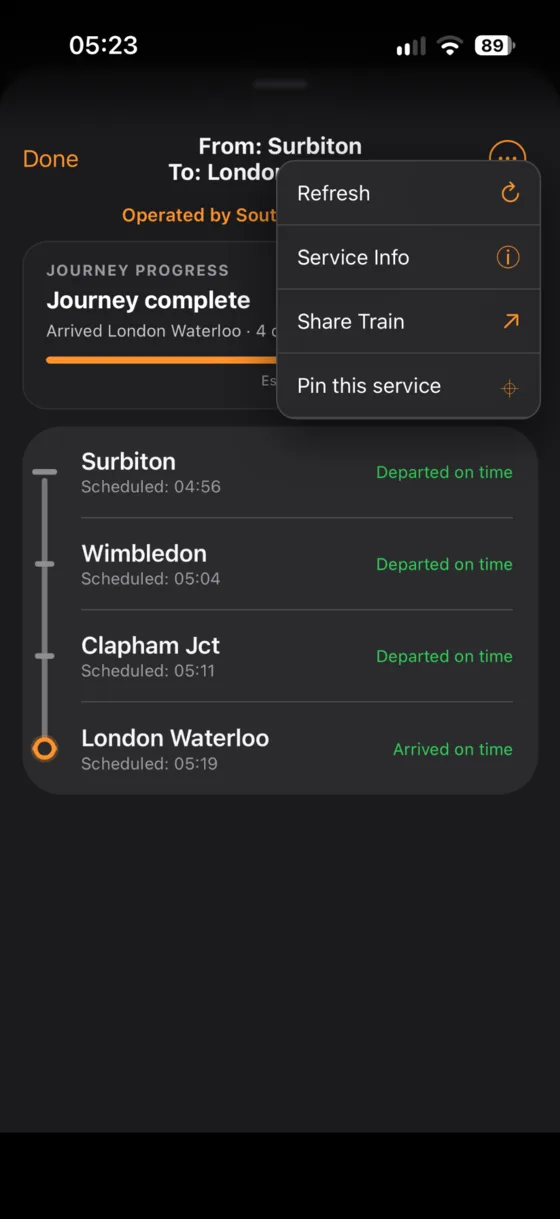
Service three-dot menu
Refresh
Refresh this service's live details.
Service Info
Show operator, service type and the National Rail service ID.
Share Train
Share a link that opens this service in UK Train Info. If the device has no share sheet, the app can copy the link instead.
Pin this service
Add this train to Pinned Services.
Pin whole journey
When Service Details was opened from a multi-leg Journey Option, pin every leg of that journey together.
10
Pinned Services & pinned journeys
Save a specific train — or every train in a Journey Option — so you can find it again later.
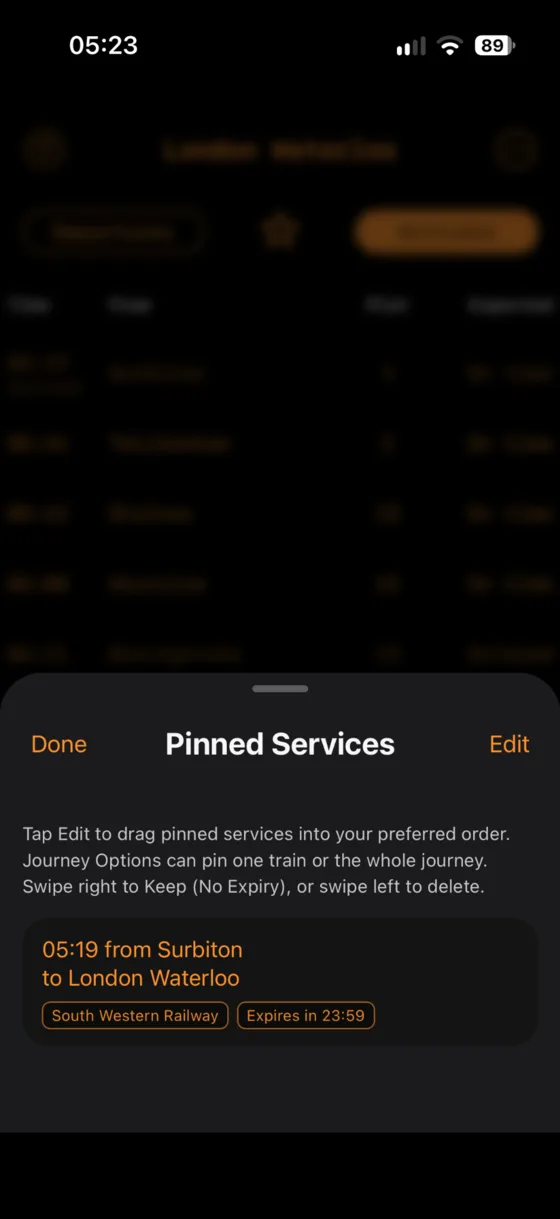
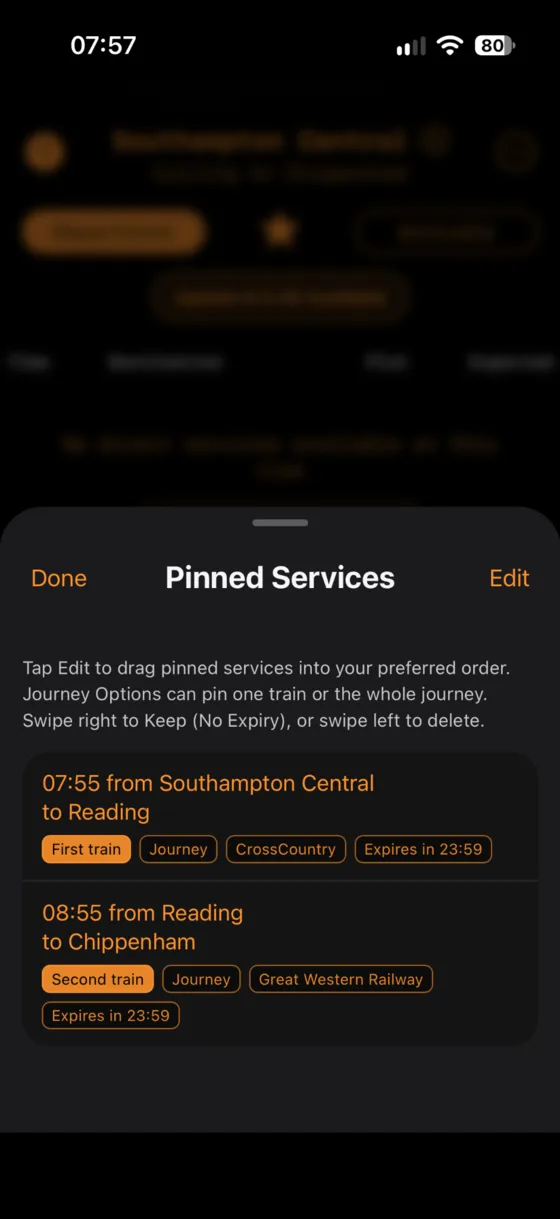
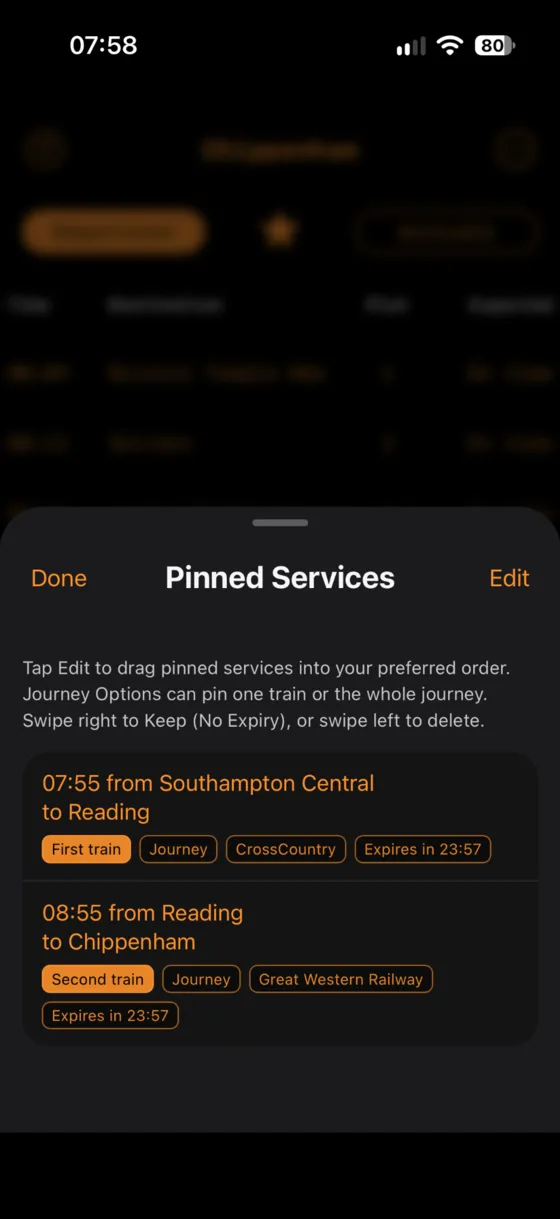
Pin a single train from Service Details.Pinned entries show route, operator and remaining expiry time.
A normal pin automatically expires 24 hours after it was added. This keeps old trains from accumulating indefinitely.
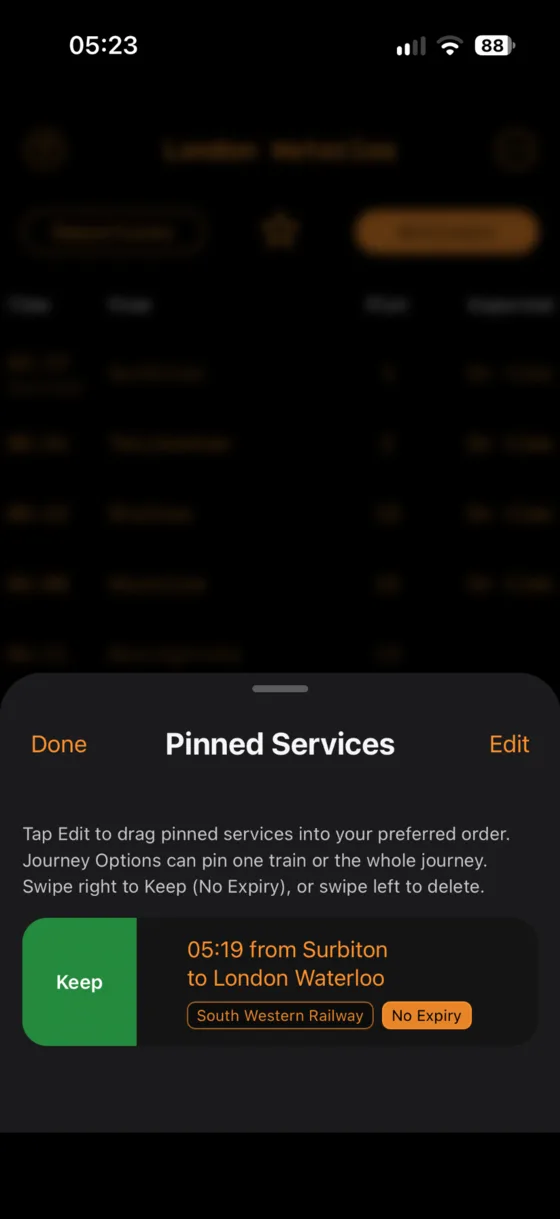
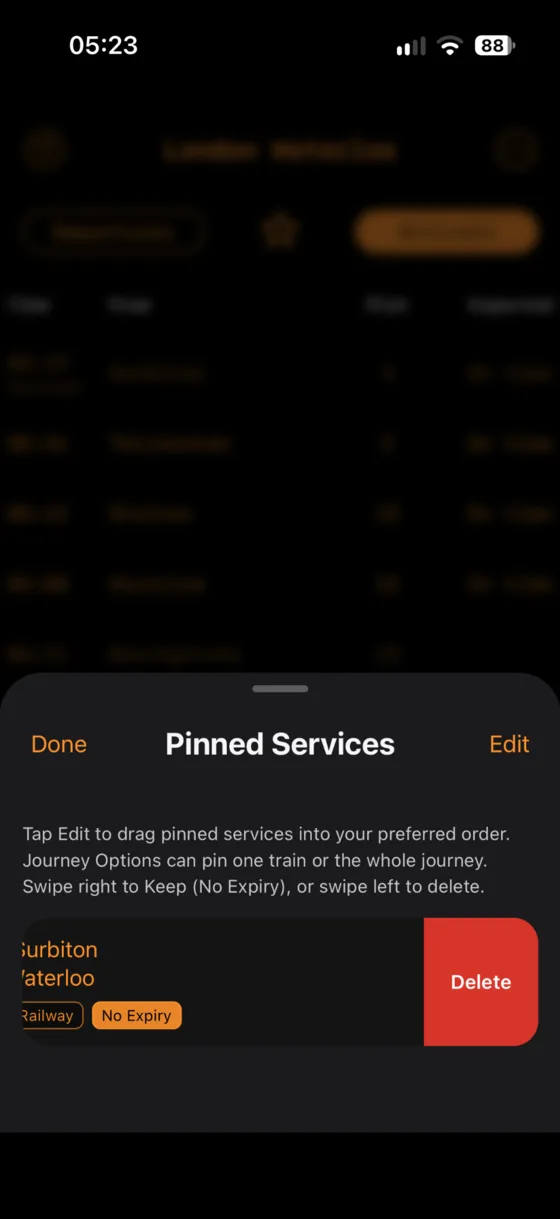
Swipe right and choose Keep to change the pin to No Expiry.Swipe left to delete a pin.
Choose Edit to drag pinned services into your preferred order. Tapping a pin looks up the live train again and opens Service Details at its current position. If it is too old, has been rerouted or can no longer be matched, the app explains that it could not find it.
Pin an entire connecting journey
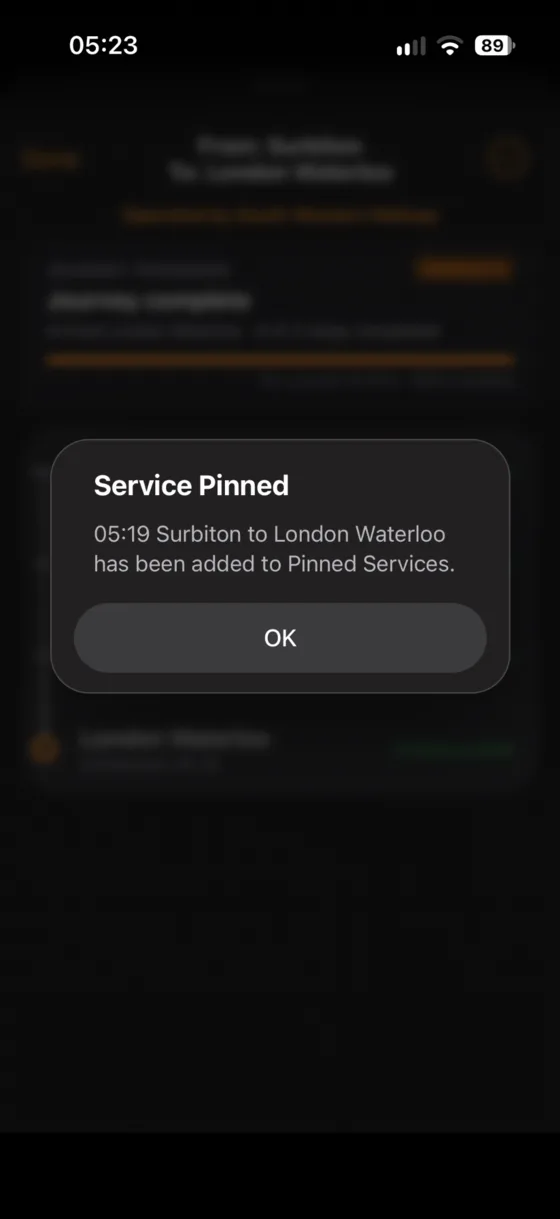
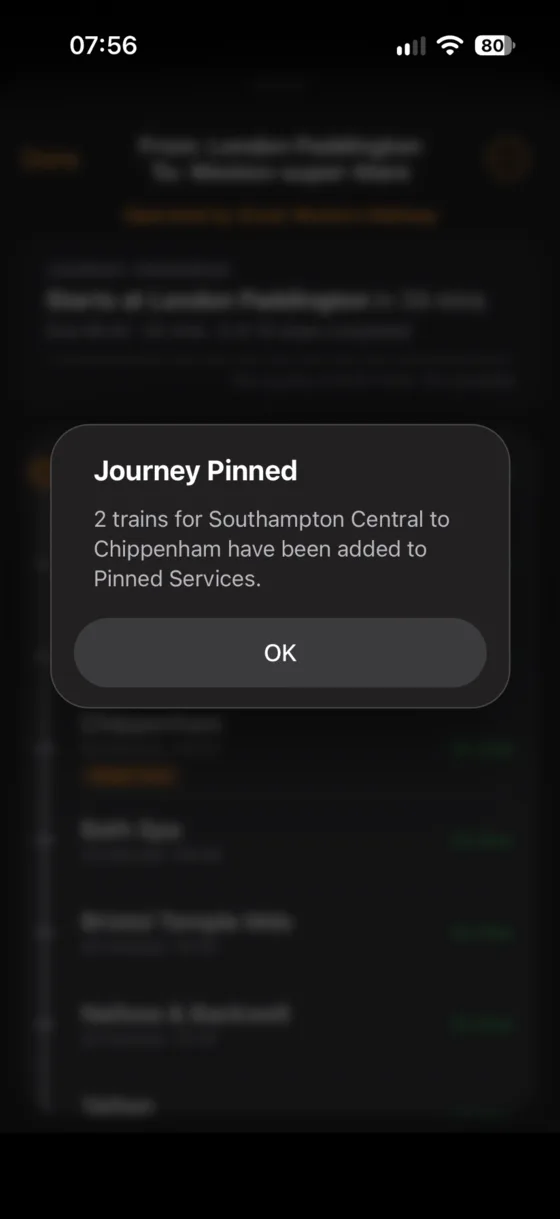
Choose Pin whole journey from a Journey Planner leg.The app confirms that every train in the journey has been pinned.The pinned journey is grouped with First train, Second train and Journey labels.
Find a connecting journey in Journey Options.
Open View service for one of its legs.
Open the service three-dot menu and choose Pin whole journey.
All legs are added together with First / Second / Third train labels as needed.
11
Settings
Adjust the board for each device and control how live data behaves.
Layout values are stored separately by device/orientation, and browser vs installed Web App where applicable.
Per-device layout
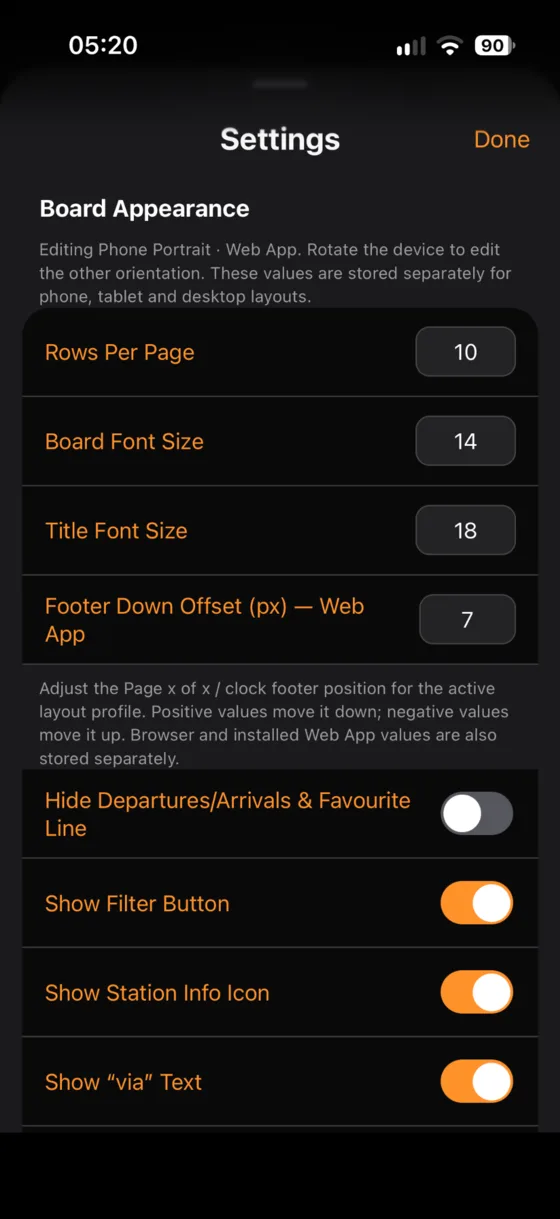
Board appearance can be tuned for the device and orientation you are using. Phone, tablet and desktop layouts are kept separately, and where applicable the installed Web App can keep its own footer offset independently from an ordinary browser tab.
This lets you adjust rows, fonts and spacing on one device without disturbing the layout you have already tuned on another.
Board Appearance
Rows Per Page
Board Font Size
Title Font Size
Footer Down Offset
Hide Departures/Arrivals & Favourite line
Show Filter Button
Show Station Info Icon
Show “via” Text
Use Station Abbreviations
Marquee speed and delay
Service Details
Show / hide the “Operated by” line
Adjust the calling-points bottom offset for the active layout
These layout controls are stored by the active phone/tablet/desktop orientation; installed Web App and browser offsets are stored separately where needed.
Auto Page Cycle
Automatically move through board pages
Choose seconds per page
Refresh
Choose the normal automatic refresh interval
Reset historic time offset automatically when switching Departures/Arrivals or returning to the app
Backup & Restore
Export a JSON backup containing your favourites, Home/Work, board settings and device layout profiles. Pinned services are deliberately excluded.
On iPhone/iPad, Save to Files is a convenient way to keep the backup in iCloud Drive.
Reset All Settings
Return UK Train Info's settings to their defaults if you want a clean configuration.
12
Updates and cached reference data
The web app can update itself without an App Store release.
When a new app shell is ready, an Update Available button appears.
Tap Update Available to activate the newly downloaded version. If you keep the app open for long periods, this is the quickest way to pick up a new release.
Station and TIPLOC reference data are cached locally after they have been successfully downloaded. The app also includes compact fallback copies so the station picker and route naming can still initialise if the central reference-data source is temporarily unavailable.
Live train information itself still needs network access to National Rail.
13
Privacy
UK Train Info is designed to work without user accounts or per-person tracking.
Location
Location is used on-device for Nearest and distance sorting. It is not stored by UK Train Info or sent to National Rail.
Usage telemetry
Operational analytics are aggregate-only. The Admin dashboard is intentionally not designed to answer “what did a particular person do?”.
14
Troubleshooting
Common things to try before assuming the railway has vanished.
The live board will not load
Use the Retry button if shown, or choose Refresh Live Board from the three-dot menu. If the problem continues, check for a maintenance or technical-problem notice and try again shortly.
Nearest or distance sorting does not work
Allow location access for the site/app in your device settings, then try Nearest again. The app deliberately asks for a fresh location fix when you tap Nearest.
A filtered board has no direct services
Use Find journey options. UK Train Info can search for a direct train, one-change journey and, when needed, two-change journey.
A pinned service says it cannot be found
The train may have arrived more than about two hours ago and disappeared from station boards, or it may have been rerouted enough that UK Train Info can no longer match the saved fingerprint reliably.
I see a planned maintenance or technical-problem message
That message is published by the UK Train Info service-control system. During full maintenance mode live-data requests can be temporarily blocked until the service is brought back online.
How do I see station messages?
When National Rail provides a station message, the station-information icon appears beside the live-board title. Tap it — or tap the station title while a message is present — to read the message.
Why are some station names shortened?
The optional station-abbreviation setting keeps long names readable in tight layouts. Examples include Temple Meads → Temple Mds, International → Intl, Junction → Jct, Underground → Tube and Central → Ctrl. The underlying station identity is not changed.
+
Screenshot tour
A few more real app states from the guide above.
Main menuBoard pagingEarlier trainsPinned journeyJourney Progress